


Phone Clone - Data Transfer
3.812.00 Reviews
App Specs
- Version
- 2.4.0
- Updated On
- License
- Free
- Downloads
- 100,000+
- Developer
- Excellio Tech
- Categories
- Libraries & Demo
- Platform
- Android
Screenshots
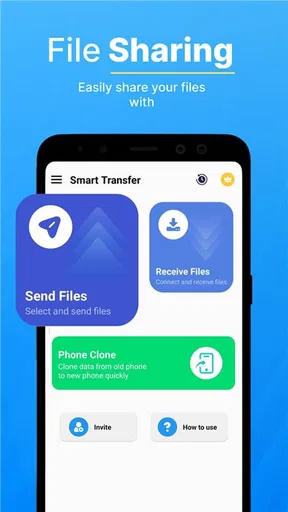
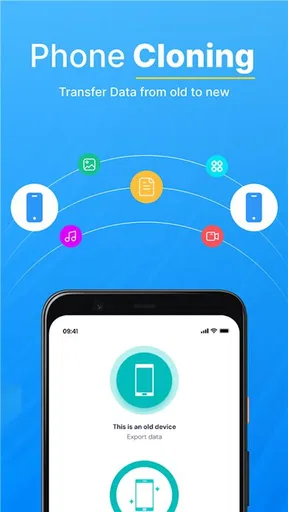
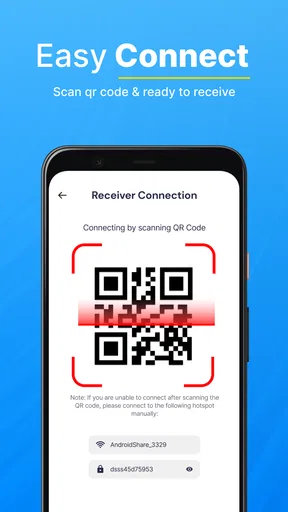
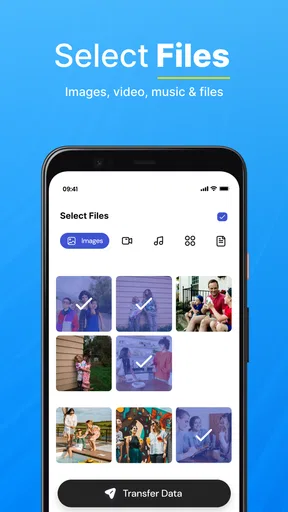
 Analysis by AppCompare
Switching phones can feel less like an upgrade and more like moving house: the new device is ready, but your contacts, photos, and familiar setup are still on the old one. I look at Phone Clone - Data Transfer as a practical tool for that one-off move, not a complete backup plan. Its appeal is straightforward: it is a free transfer app from Excellio Tech, and its wireless approach may save the hassle of sorting files by hand. The sensible question is not just how quickly a transfer can start, but what you should check before trusting a migration with personal information.
A transfer tool, not a trust guarantee
Phone Clone sits in the Libraries & Demo category, but in everyday use its purpose is easy to understand: help move information between phones. The app has a 3.8 average from around 2,100 ratings, with over 100,000 installs. That gives a newcomer some context about its reach, but it cannot tell me whether every device pairing will behave the same way or whether a particular transfer will include everything I care about.
I would treat any phone-to-phone transfer as a sensitive task, because the source device may contain private conversations, personal photos, and account-related information. A claim that data moves directly between phones can sound reassuring, but I would not turn that into a blanket promise about privacy or security. Before proceeding, I’d read the prompts shown on both devices, pay attention to what the app asks to access, and avoid approving anything that does not make sense for the transfer I want to perform.
What to check before connecting devices
My first practical step would be to identify the sending phone and receiving phone carefully. That sounds obvious, but a transfer session is the wrong moment to guess which device is which or tap through screens while distracted. Keep both phones close, make sure they have enough battery for the task, and give yourself time to review the selection before starting. Those small precautions reduce avoidable confusion without assuming anything about how the app handles a particular permission.
I would also decide in advance what matters most. If the main goal is preserving family photos or keeping contacts available, check those items on the new device before wiping, trading in, or resetting the old one. A transfer that appears to finish is not the same as a verified migration. Open a few important files, inspect key contacts, and confirm that the essentials are present while the source phone is still available.
When the move includes private material
Phone changes often happen at inconvenient times: a device is damaged, a replacement arrives just before a trip, or a work phone has to be handed back. In those situations, a guided transfer can be easier than manually rebuilding a phone. Still, urgency is a reason to be more deliberate, not less. I would avoid doing the migration in a public place where either device could be left unattended, and I would not share a connection code or let someone else operate the phones unless I trust them.
If you are moving a phone used for banking, work, or two-factor sign-ins, plan for those separately. Moving general phone content does not necessarily mean every account will be ready to use on the replacement. Keep access to your old device until you have tested essential sign-ins and recovery options. That is a useful safeguard with any migration method, especially when the old phone is the only place where an account’s verification prompts currently arrive.
Worth Reading Before You Choose

Flipboard Shows What News Apps Must Do Beyond the Feed

Switching to Android Auto Means Rethinking Your Driving Routine

Google Calendar Makes a Crowded Week Easier to Manage

Ludo King Makes the Most of the Minutes Between Plans

Baby Panda World Brings Quick Play to Modern Phones, but Its Game Library Feels Busy

ESPN’s Live Game View Makes Following Close Games Easier
Useful choices and sensible limits
The most helpful control in a transfer app is the ability to understand what is about to move and to make a deliberate choice rather than blindly copying everything. I would look closely at the screens presented during setup and use only the options that match my needs. If a particular category is not relevant, there is no benefit in treating a full-device move as mandatory. A selective approach can make it easier to review the result and avoid carrying over content you no longer want.
Phone Clone is free to install, but it also offers in-app purchases priced from $1.99 to $29.99 per item. I would check the purchase screen carefully before confirming anything, particularly if I only need a one-time transfer. The app is rated for Everyone, and its current version is 2.3.8; it requires Android 10 or later. Those details matter when deciding whether an older phone can take part, so I would check both devices before setting aside time for the move.
Who is likely to find it useful?
I can see this being most useful for someone replacing a personal phone who wants a guided, wireless way to bring selected everyday content across. It may also suit a less technical family member who would rather follow an on-screen process than choose folders and copy files manually. If you are helping someone else, let them review the prompts and decide what to transfer; being the helper should not mean making privacy choices on their behalf.
It is less compelling if you already rely on a carefully maintained cloud backup or the built-in migration tool provided with your new phone. Those options may fit better when you want ongoing backups, a familiar account-based restore process, or a migration designed around a particular phone ecosystem. A computer-based copy can be preferable when you want to inspect files individually or keep a separate archive. Phone Clone’s strongest case is a direct device-to-device move, not replacing those broader routines.
A realistic way to use it
Imagine replacing a phone on a quiet evening before a busy week. I would first charge both devices, connect them to a reliable power source if convenient, and make sure I can unlock each one. Then I would install the app where needed, identify which phone is sending and which is receiving, and read each access prompt rather than tapping through automatically. I would choose the content that matters for the move, start the transfer, and leave both devices together until the process is done.
Afterward, I would check the new phone in a deliberate order: contacts first, then a handful of important photos, then any other items I rely on daily. I would also test messaging and account access instead of assuming that familiar-looking icons mean everything is ready. Only once I am satisfied would I consider erasing or handing over the old phone. This workflow may take longer than rushing through setup, but it gives me a chance to catch a missing item before the source disappears.
How it compares with the usual alternatives
Compared with manually copying content, a guided transfer is less fiddly because it brings the process into one app rather than asking you to move items one by one. Compared with a cloud restore, a phone-to-phone approach may feel more direct to someone who does not want to build the migration around an online backup. The trade-off is that a direct session depends on having both devices available at the same time, while a backup can be useful when the old phone is lost or unusable.
Built-in migration tools are worth considering too, especially if both phones belong to the same ecosystem or the manufacturer’s own process covers the content you need. I would choose the method that gives me the clearest view of what is moving and the easiest way to verify it afterward. There is no universal winner: the right option depends on whether you value a guided direct transfer, a restorable backup, or finer control over individual files.
Questions worth settling before you begin
Can you use it for every phone combination? I would not assume that from the app’s broad purpose alone. Check that the app can be installed and opened on both devices and follow the actual pairing instructions shown during setup. The Android minimum is version 10, so an older Android phone may not meet that requirement. If either device cannot participate, the phone’s built-in migration option or a computer may be a better route.
Does a completed transfer mean every app and account is ready? I would not count on that. Some services require you to sign in again or complete their own verification, so keep passwords and account recovery methods available. Can you safely erase the old phone right away? I would wait until you have checked important content and confirmed access to essential accounts. And if the app presents an unexpected permission or payment prompt, pause and decide whether it is necessary before continuing.
My cautious verdict
Phone Clone is worth considering when I want a guided way to move content directly between two phones and can keep both devices available during the process. Its appeal is the focused job it sets out to do; its limits are the same ones I would keep in mind with any migration app: device compatibility, careful permission review, and the need to check the destination afterward. I would skip it if my priority were a long-term backup system, detailed file-by-file archiving, or a transfer method already handled more clearly by my phone’s built-in tools.
Overall, I would approach Phone Clone - Data Transfer as a convenient helper rather than a guarantee that every part of a digital life will arrive perfectly. Take a few minutes to review choices, keep the old phone usable until the new one is checked, and do not rush through sensitive prompts. With that cautious mindset, it can make a phone change feel more manageable without asking you to hand over control of the process.
Why Phone Clone is a Game Changer
Let's dive right into what makes Phone Clone a lifesaver. First off, it's available for both Android and iOS, so no one's left out in the cold. The app is designed to transfer everything from contacts and photos to messages and apps with zero fuss. And the best part? It's all done wirelessly. Yep, no cables needed, my friend!
Setting Up is a Breeze
Honestly, the setup process couldn't be easier. Once you've downloaded the app on both your old and new devices, you're just a few taps away from starting the transfer. The app guides you through the process with a user-friendly interface that even the least tech-savvy among us can navigate. Just scan a QR code, connect the two devices, and you're off to the races!
Speed and Efficiency
Now, let's talk speed. Nobody wants to wait around forever while data transfers, right? I was pleasantly surprised at how quick the process was. The app promises a speedy transfer, and it delivers. Depending on the amount of data, you could be done in just a few minutes. It's like magic, but real!
Security and Privacy
In a world where privacy is paramount, Phone Clone takes security seriously. The app assures users that all data is transferred securely between devices with no risk of data leakage. It's all done directly from phone to phone, with no cloud involvement, which is a huge relief for those of us who are a bit paranoid about data privacy.
The Little Extras
What really sets Phone Clone apart are the little extras that make life easier. For instance, it supports multiple languages, which is super handy if English isn't your first language. Also, the app is compatible with a wide range of devices, so you're not limited by brand or model.
My Personal Experience
So, here's the deal. I recently switched from an older Android to a shiny new one, and Phone Clone was my go-to. Transferring my entire digital life took less time than a coffee break. Seriously, it was that quick. Plus, everything was exactly where I left it—contacts, photos, even my app layouts. It was like stepping into my old phone, but with all the perks of a new one.
Wrapping it Up
In a nutshell, if you're looking to switch phones without the headache of manually transferring data, Phone Clone is your best bet. It's simple, efficient, and reliable. So, the next time you're upgrading your device, give it a shot. You'll thank me later!
Pros
- Fast data transfer between devices.
- User-friendly interface for easy use.
- Supports multiple data types.
- No internet required for transfer.
- Compatible with Android and iOS.
Cons
- May not support older device models.
- Occasional connection drops.
- Transfer speed varies by file size.
- Limited support for app data transfer.
- Requires both devices to be nearby.
FAQs for Phone Clone - Data Transfer
How does Phone Clone - Data Transfer work?
Phone Clone - Data Transfer works by creating a secure connection between two devices, allowing users to transfer data seamlessly. By scanning a QR code, you can connect the devices and choose the types of files you wish to transfer, such as contacts, photos, messages, and apps, ensuring a smooth transition to your new phone.
Is Phone Clone - Data Transfer compatible with both Android and iOS devices?
Yes, Phone Clone - Data Transfer is compatible with both Android and iOS devices. The app allows cross-platform data transfer, enabling users to move data from an Android to an iOS device and vice versa. However, some app-specific data may not transfer between different operating systems.
What types of data can I transfer using Phone Clone - Data Transfer?
With Phone Clone - Data Transfer, you can transfer a variety of data types including contacts, photos, videos, music, messages, call logs, and apps. It is important to check the app’s settings to select the specific data types you wish to move, as not all app data may be transferable.
Is it safe to use Phone Clone - Data Transfer for my personal data?
Yes, Phone Clone - Data Transfer prioritizes user privacy and security. The app uses secure connections to ensure that your data is safely transferred between devices. It does not store any personal information on external servers, providing peace of mind during the transfer process.
Do I need an internet connection to use Phone Clone - Data Transfer?
No, an internet connection is not required to use Phone Clone - Data Transfer. The app establishes a local Wi-Fi hotspot between the devices, facilitating the transfer without the need for cellular data or Wi-Fi access. This makes it convenient and cost-effective for users.


